Plantalk AI
Identify a Plant From a Photo
Plantalk AI identifies a plant from a photo you take or choose from your library. You confirm what it detected, and the plant gets its own profile with care tasks, its ideal light and temperature ranges and a health score.
Free on iPhone, iPad and Android · Updated November 8, 2026 by the Plantalk AI team
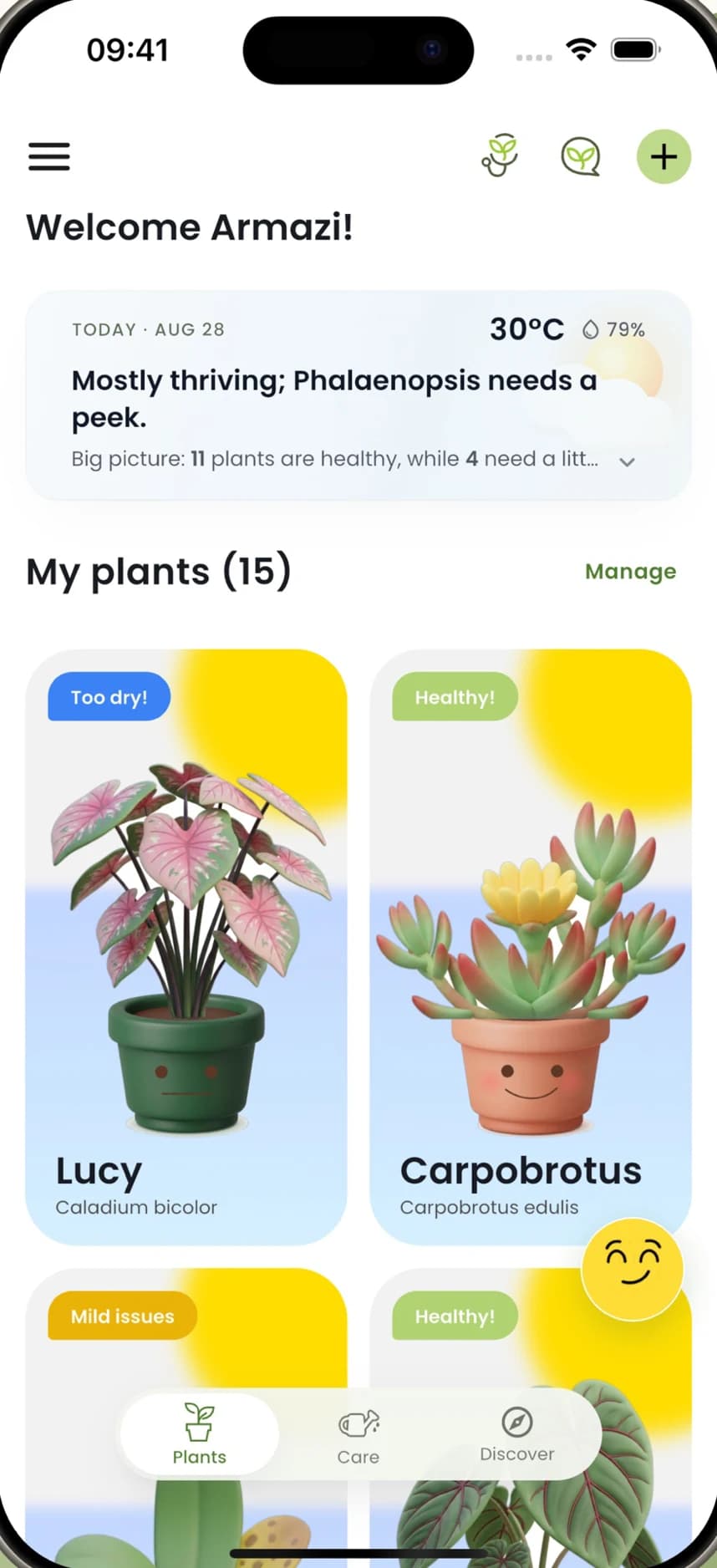


From Photo to Plant Profile
Tap +
Start on the Plants screen, where all your plants live.
Take or choose a photo
Use the camera or pick a photo from your library (your gallery on Android). On iPhone, tap to focus and pinch to zoom.
Confirm the match
Plantalk AI shows what it detected. Check it, then save the plant.
Open its profile
The plant gets Overview, Environment and Visual health views, and its tasks join the Care screen.
What Every Plant Gets
Its own profile
Overview, Environment and Visual health views for each plant.
Its sweet spot
Ideal light and temperature ranges, in plain words.
A care plan
Daily tasks on the Care screen and a care calendar for the month.
A health score
A score and growth trend you can follow over time.
A portrait
A fun 3D-style look for each plant. Switch styles any time.
Local weather
With location on, care tips account for local heat and humidity.
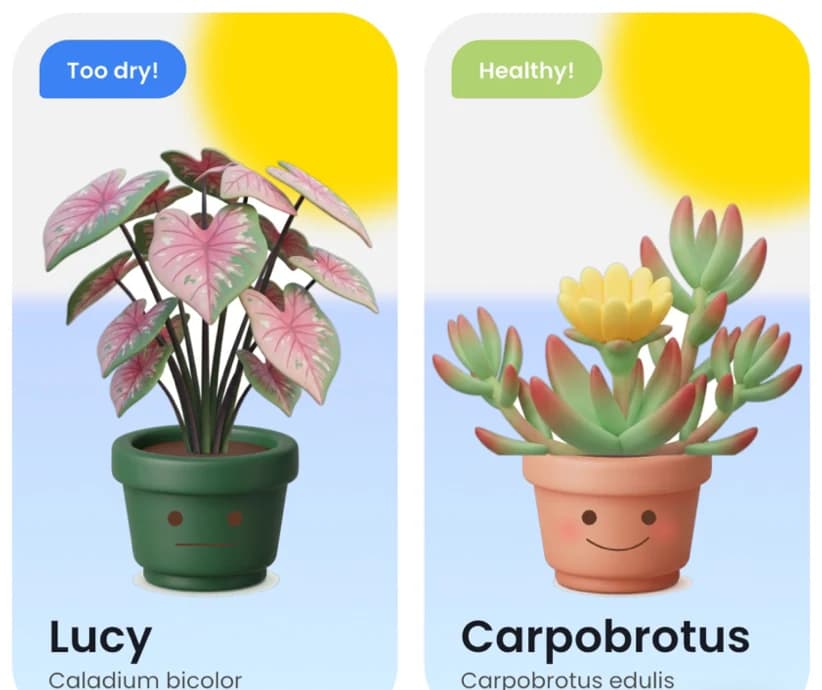
Every plant on one screen, each with a status.
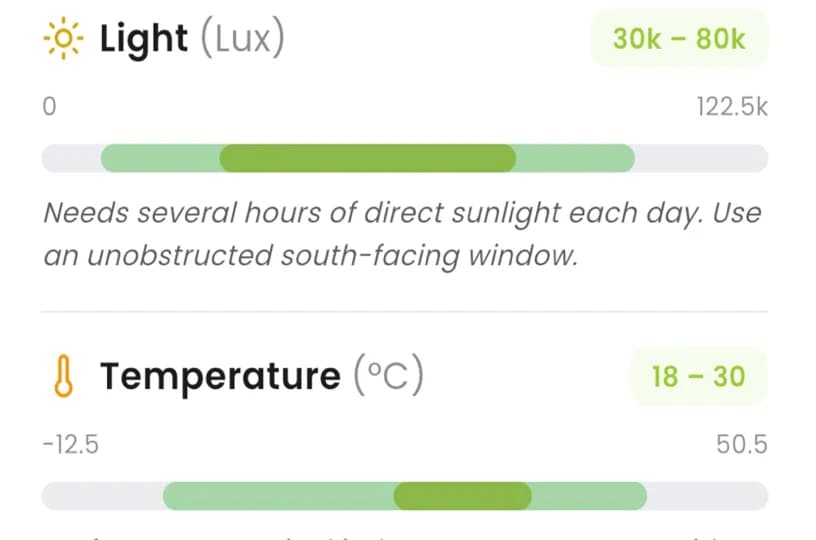
Each plant's ideal light and temperature.
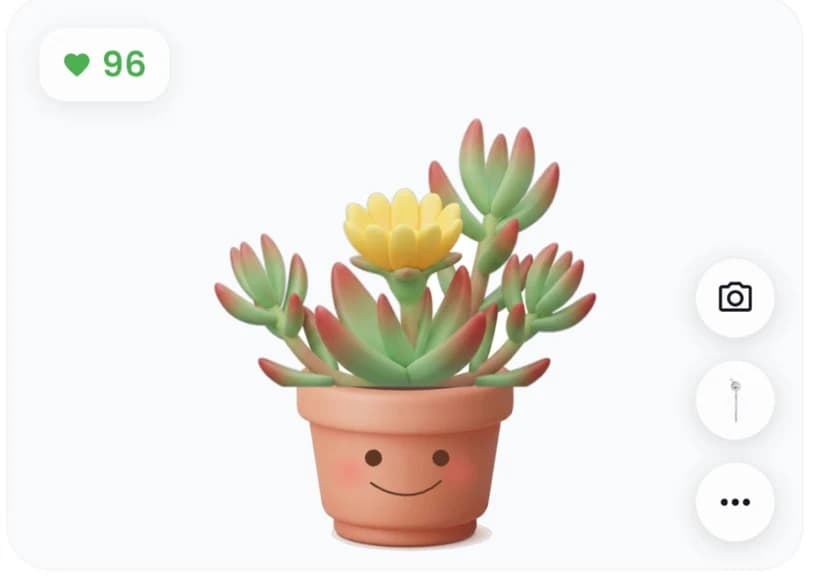
A portrait that carries the plant's health score.
Looking for a new plant instead?
Discover lets you search for plants, browse popular plant groups or take the Find my match quiz, which asks about your light and care needs before suggesting plants.
Common Questions
How do I identify a plant with Plantalk AI?
Tap + on the Plants screen, then take a photo or choose one from your library. Plantalk AI shows what it detected. Confirm it, and the plant is saved with its own profile and care tasks.
Can I use a photo I already took?
Yes. Choose a photo from your library on iPhone and iPad, or from your gallery on Android.
What happens after a plant is identified?
It gets a profile with Overview, Environment and Visual health views, a care schedule on the Care screen and a health score you can follow over time. You can also give it a 3D-style portrait.
Do I need a Plantiemoji sensor to identify plants?
No. Photo identification and plant profiles work without a sensor. A Plantiemoji sensor adds live readings of light, temperature, humidity, air pressure and soil moisture.
Is Plantalk AI free?
Yes. Plantalk AI is free to download from the App Store and Google Play. The app also offers optional Pro access as an in-app subscription, which is billed and managed through your Apple or Google account.
Get Plantalk AI Free
On iPhone and iPad with iOS 15 or later, and on Android. Pro is an optional subscription in the app.